iPad kiosk mode for athlete check-in
How staff provisions a branch-scoped iPad kiosk, locks it to the app, lets registered athletes self check in, and exits or reprovisions the device safely.
- 1
What kiosk mode is
CompTeam's iPad kiosk mode turns one iPad inside your branch into a dedicated self check-in station.
After provisioning, the app no longer opens the normal staff session on that device. Instead, it boots directly into a branch-scoped kiosk that can only:
- show the current class when one is already in progress
- if multiple visible classes share that same start time, show those classes and let the athlete choose one
- otherwise show the next class today
- let registered athletes either search their own name or scan a class QR code and mark themselves checked in
This mode is designed for front-desk or mat-side use. It is not a public scheduling screen, and walk-ins stay disabled unless the branch explicitly enables kiosk walk-in check-in.
- 2
Before you provision the iPad
Check these prerequisites first:
- Install the Compteam app on the iPad from the Apple App Store.
- Sign in to the Compteam app as a coach, branch admin, or org admin for the branch that will own the kiosk.
- Open the branch that should use the iPad. A kiosk is bound to one branch at a time.
- Make sure the branch schedule already contains the classes athletes will check into.
Operational note:
- if there is no in-progress class and no later class left today, the kiosk shows an empty state and no check-in actions
- 3
Provision the device in CompTeam
Inside the signed-in Compteam app:
- Open the main schedule screen for the target branch.
- Tap Set up iPad kiosk.
- On the Set up iPad kiosk screen, enter the device label you want staff to recognize later in the Device label field, for example
Front Desk iPad. - On the same screen, enter a 4 to 6 digit exit PIN in Exit PIN and repeat it in Confirm exit PIN. This PIN is stored locally on the iPad and is required to leave kiosk mode.
- Tap Enable kiosk mode.
CompTeam then provisions a branch-scoped kiosk credential for that iPad, stores it securely on the device, signs out the current staff session, and relaunches straight into kiosk mode.
From that point on, reopening the app on the same iPad goes directly to the kiosk instead of the usual login flow.
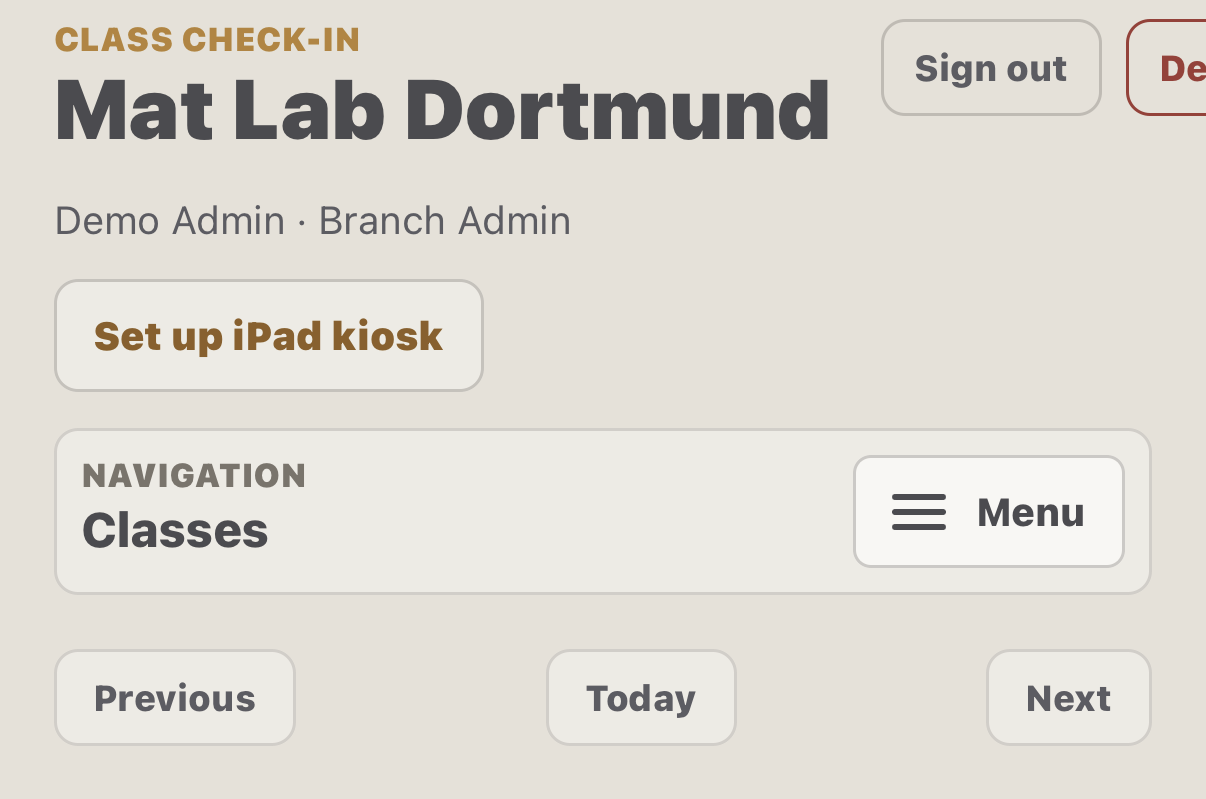
Compteam schedule screen showing the Set up iPad kiosk button 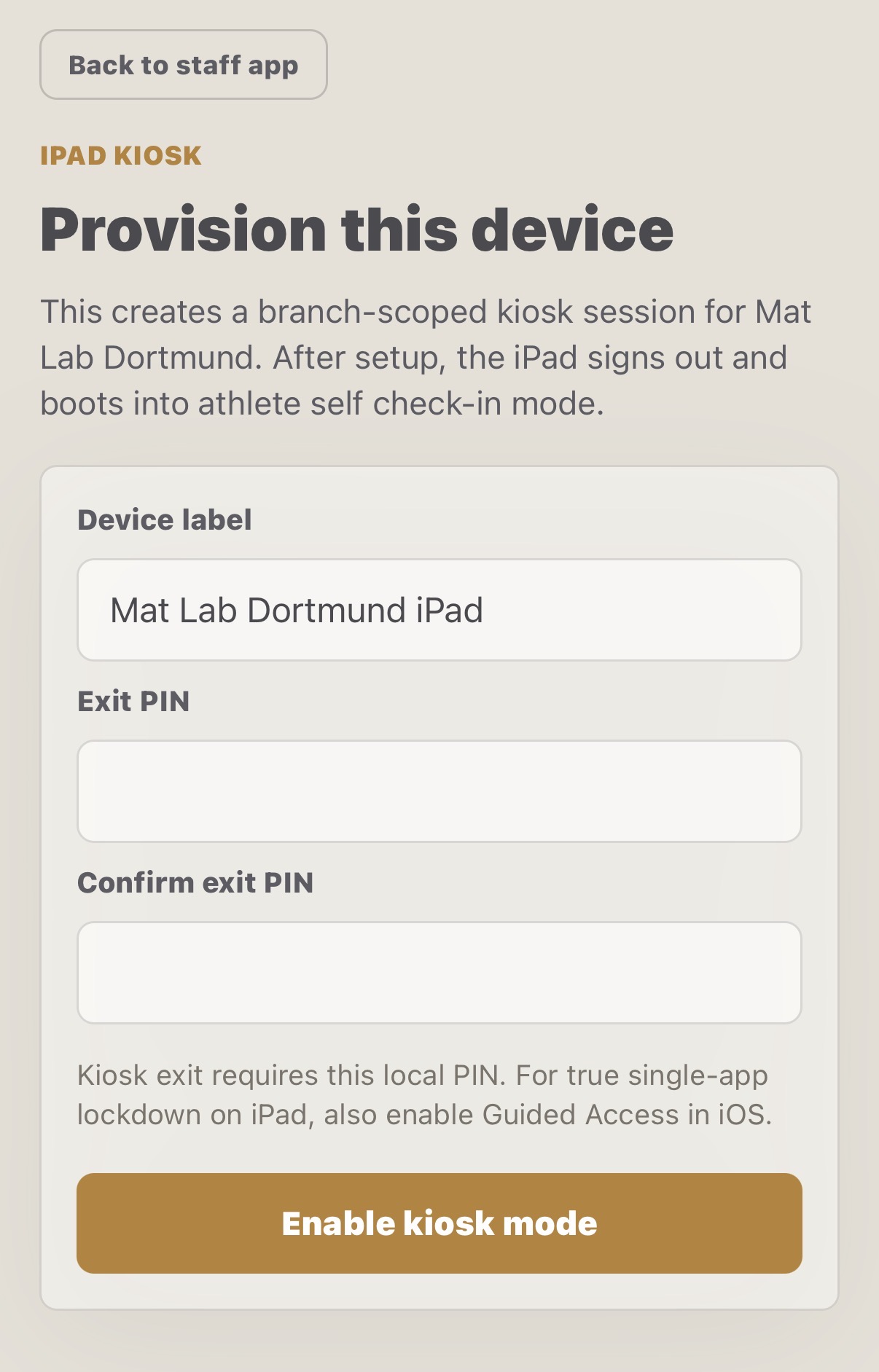
Compteam kiosk provisioning screen showing the device label and exit PIN fields - 4
Lock the iPad to the app
CompTeam handles the in-app kiosk shell, but full single-app lockdown still depends on iPadOS.
For a real front-desk kiosk, enable Guided Access on the device:
- Open Settings on the iPad.
- Go to Accessibility.
- Open Guided Access.
- Turn it on and configure the passcode or Face ID settings you want.
- Start Guided Access while the Compteam app is open in kiosk mode.
Without Guided Access, users can still leave the app through normal iPad system gestures.
- 5
What athletes can do at check-in
The kiosk is intentionally narrow:
- Athletes must type at least 2 letters before any results appear.
- Search only matches the registered attendee list for the selected class occurrence.
- The kiosk can also show a QR code for the displayed class. Athletes scan it, sign in to Compteam in their phone browser if needed, and are checked in immediately.
- The kiosk does not reveal the full roster before search input.
- By default, the kiosk does not create walk-ins. If the branch enables kiosk walk-in check-in in Branch Settings, eligible active athletes from that branch can still check in without prior registration.
- The kiosk only offers class choice when multiple visible classes share the same start time.
- If multiple visible classes share the same start time, athletes first choose the correct class. Search results and the QR code then apply only to that selected class.
- The kiosk does not offer self-service undo after a successful check-in.
After a successful check-in, the kiosk briefly shows confirmation, clears the search box, and stays on the same class so the next athlete can check in immediately.
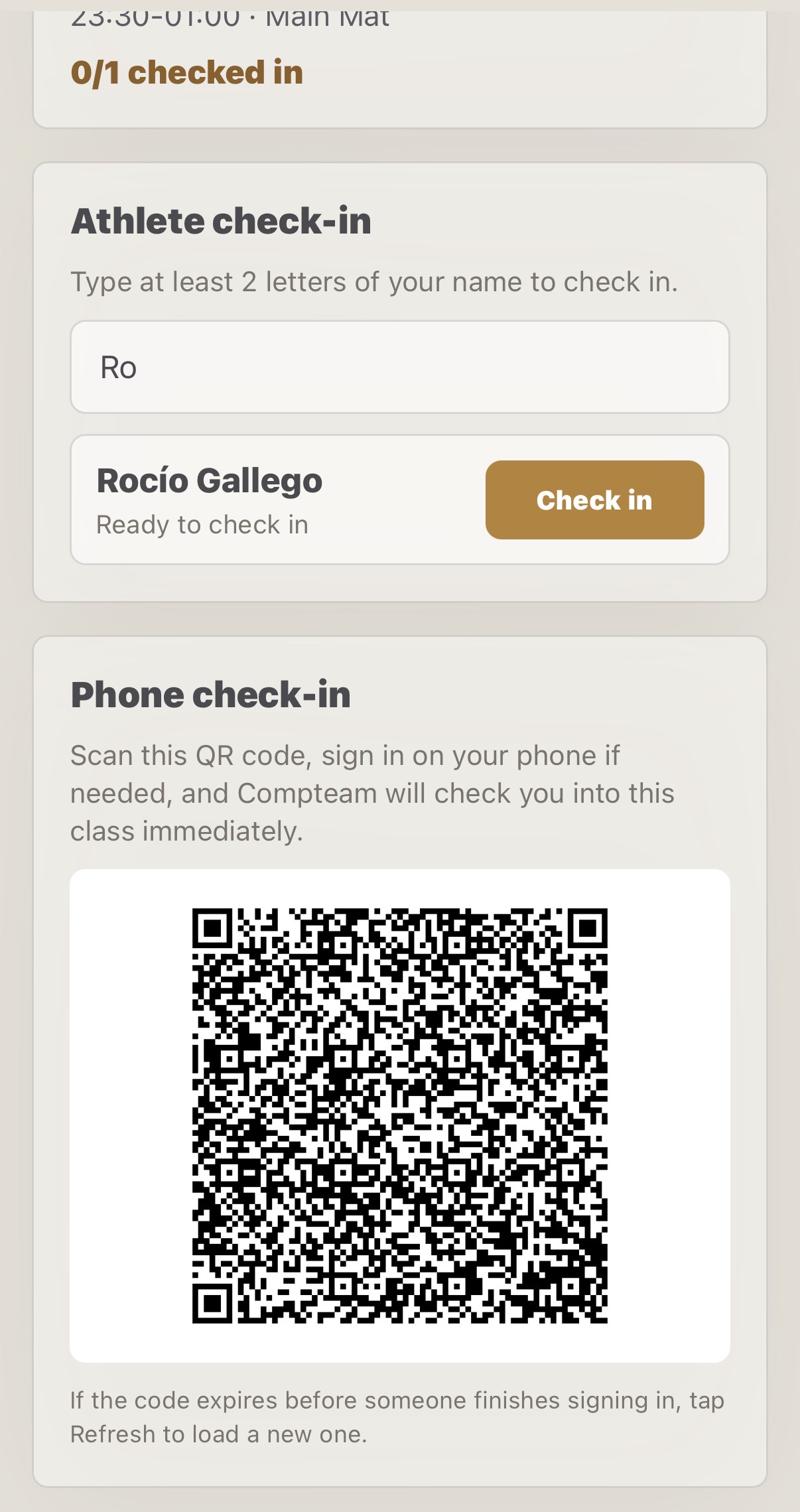
Compteam kiosk screen showing athlete search and phone QR check-in options 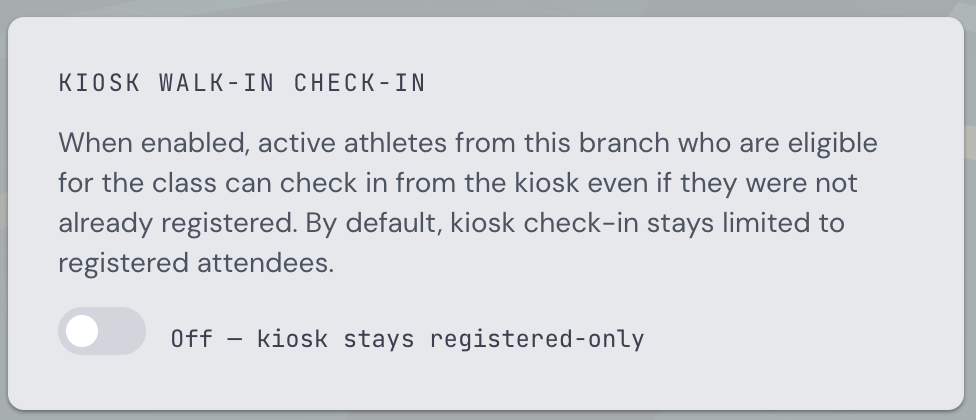
Branch Settings - Kiosk walk-in check-in toggle - 6
Unlock, reprovision, or disable the kiosk
Kiosk exit is hidden on purpose.
To open kiosk controls:
- Press and hold the branch header card at the top of the kiosk screen.
- Enter the local exit PIN.
- Open the kiosk controls.
From there, staff can:
- Reprovision this iPad to create a fresh kiosk session after signing in again
- Disable kiosk on this iPad, which clears the stored kiosk credential on the device
If the kiosk session is revoked server-side or the token becomes invalid, the next kiosk API call fails, the app clears kiosk mode locally, and it falls back to normal sign-in and setup.
To recover after token invalidation:
- Sign back in on that iPad as a coach, branch admin, or org admin.
- Open the branch that should own the kiosk.
- Use Set up iPad kiosk again, or open kiosk controls and choose Reprovision this iPad if that option is available.
- Enter a new device label or exit PIN if staff wants to change them, then finish provisioning.
If staff intentionally wants to retire that kiosk instead of reprovisioning it, choose Disable kiosk on this iPad after unlocking the device with the local exit PIN.
- 7
Operational limits and troubleshooting
Version 1 of kiosk mode has a few deliberate limits:
- only one branch per kiosk device
- no DOB confirmation
- no offline mode
- no multi-branch switching inside the kiosk
- walk-ins are optional, branch-scoped, and limited to eligible active athletes from that branch
- no self-service undo
If an athlete says they cannot find themselves:
- Confirm they are already a registered attendee for that class.
- Confirm they are searching with at least 2 characters.
- Refresh the kiosk if staff changed attendance in the admin app a moment ago.
If the phone QR check-in says the link is expired or invalid:
- Refresh the kiosk screen to generate a fresh QR code.
- Ask the athlete to scan again and finish sign-in right away.
- If it still fails, confirm they are already a registered attendee for that class.
If staff needs to move the iPad to another branch, disable or reprovision the kiosk and sign back in with the target branch selected first.