Kids program setup
Set up guardian consent, kid-only training sessions, competition approvals, and manage the full lifecycle from import to self-managed account.
- 1
Mark athletes as kids
There are two ways to add a kid to the roster:
Import from CSV or file
Add an
is_kidcolumn to your import file. Set the value totruefor underage athletes. Email is optional for kids — if left blank, the system generates an internal temporary address. You can also include aguardian_emailcolumn to pre-fill the guardian link.first_name last_name date_of_birth belt is_kid guardian_email Lukas Meier 2015-04-10 white true parent@example.com Change tier on a pending or active athlete
Open the athlete's profile page and click Change next to the Athlete Tier field. Select Kid from the dropdown and save.
The athlete will appear with a green Kid badge in the roster.
- 2
Activate kid profiles
After importing, kids appear in the Pending registration section on the Athletes page.
Click Activate kid to create the managed profile. Unlike adult athletes:
- No invite email is sent (kids have no login account).
- The profile is created immediately using the data from the import.
- If a membership plan was pre-assigned, it activates at the same time.
You can assign a kid-specific membership plan (see step 3) before or after activation.
- 3
Link guardians to kids
Open the kid athlete's profile page. Scroll to the Guardians section.
Click Link Guardian and enter:
- Guardian email address — if they already have an account, the link is created instantly. If not, they receive an invite email to register and accept.
- Relationship — Parent or Legal Guardian.
The guardian will be able to log in and see a My Kids menu item in the navigation. From there, and across the app, they manage everything on behalf of the kid:
- Confirm attendance to individual training sessions on the weekly schedule.
- Give general training consent so the kid is cleared to train at all.
- Choose and change the kid's membership plan, and cancel it.
- Maintain a SEPA mandate for each kid so dues are collected from the guardian's account.
- Approve competition entries the branch registers the kid for.
A guardian can also be an athlete at the same branch. When they confirm attendance, they get a picker that includes both themselves and their kids — but their own training, membership, and competition entries stay completely separate from the kids'.
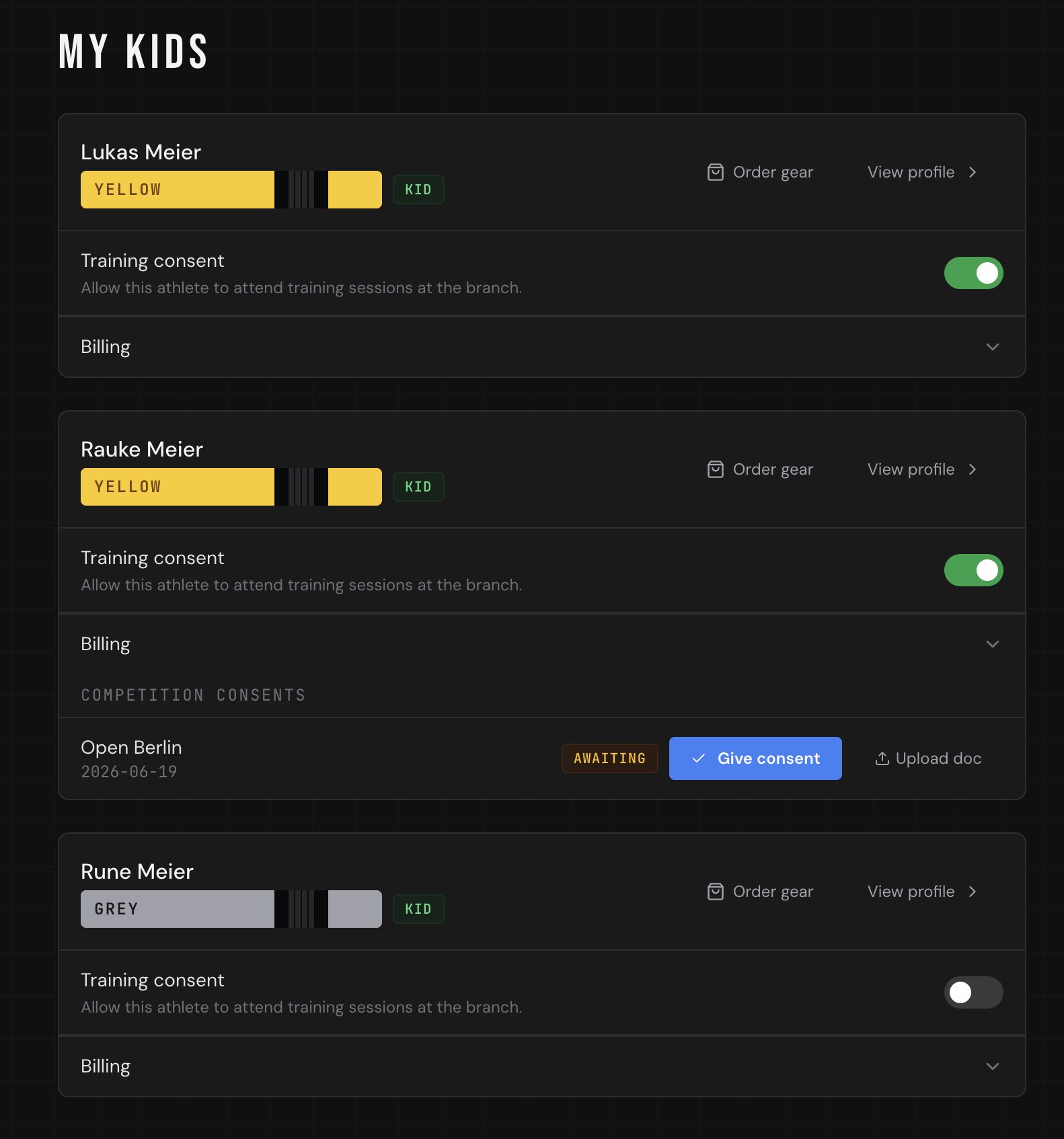
My Kids page — three kid profiles with training consent toggles and billing sections - 4
Guardian confirms training attendance
Kids have no login, so guardians confirm attendance for them.
On the weekly Schedule, a guardian taps Attend on any session their kids are eligible for. Instead of attending themselves, they get a checkbox list of all their kids — they tick whoever is coming and confirm. Each selected kid is marked attending for that session; unticked kids are left off.
If the guardian is also an athlete at the branch, the same picker shows a "(me)" row at the top so they can confirm their own attendance in the same step.
Coaches see each kid in the session's check-in panel exactly like any other athlete, and the attendee count on the card includes them.
- 5
Guardian gives general training consent
Before a kid trains at all, the guardian gives general training consent — separate from per-competition consent.
On the My Kids page, each kid's card has a Training consent toggle. Turning it on records the guardian's consent with a timestamp; turning it off revokes it. Branches can use this as the gate for letting a kid onto the mats, and it gives you an auditable record for safeguarding.
- 6
Guardian manages the kid membership plan
Guardians pick and manage the kid's membership themselves — you don't have to assign it for them.
On the My Kids page, each kid's card has a Membership section. Expanding it shows every plan available to kids (kid-only plans plus any all-tier plans). The guardian subscribes to a plan, switches to a different one, or cancels — all collected via the SEPA mandate they maintain for that kid. Stripe-backed plans send the guardian through checkout; manual plans activate immediately.
- 7
Configure kid membership plans
Go to Membership Plans in the sidebar.
When creating or editing a plan, check the Kid box under Available To. Uncheck Amateur and Competitor if the plan is exclusively for kids.
Kid-only plans are not shown to adult athletes on the Subscribe page. The guardian fills in the IBAN and billing details for the kid from the My Kids page (see step 5).
- 8
Guardian billing & SEPA mandate
The guardian signs and maintains the kid's SEPA mandate themselves — you never handle the kid's bank details as an admin.
After logging in, the guardian opens My Kids and expands the Billing section on each kid's card. There they enter:
- Account holder name — usually the guardian, since the kid has no bank account.
- IBAN — validated on save, exactly like an adult athlete's mandate.
- Billing address — used on the SEPA mandate and any invoices.
On save, the system stores the IBAN in the encrypted vault and generates a SEPA mandate reference with a signed date. The same mandate then covers the kid's membership plan and any other branch charges, collected from the guardian's account.
The guardian can update or revoke the mandate from this page at any time. If your branch does not have SEPA enabled, the billing section only shows the address fields.
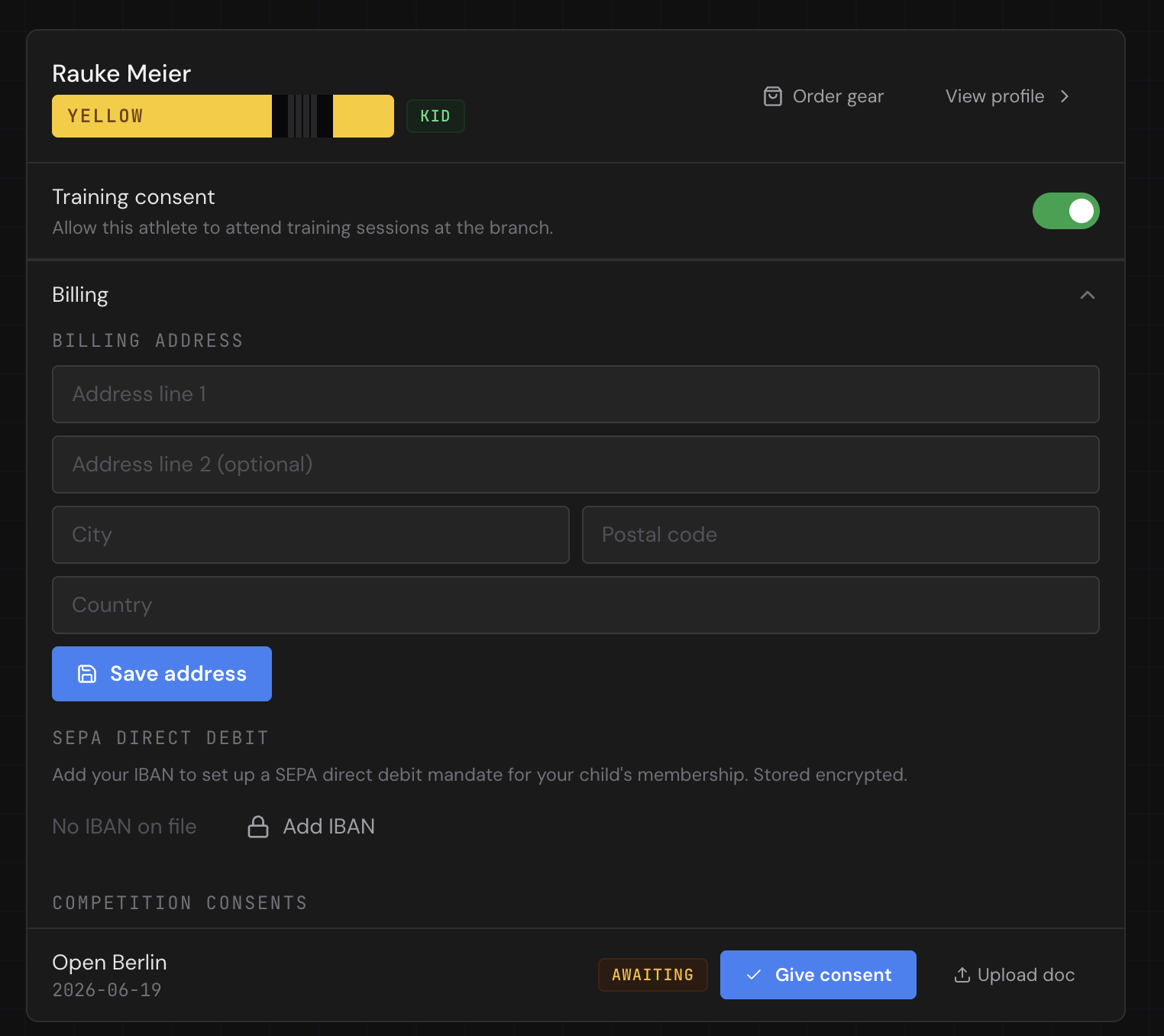
My Kids — billing section expanded showing IBAN field and competition consent - 9
Set up kids-only training sessions
When creating a training series, set the Kind to Kids.
The system automatically restricts this session to kid-tier athletes only. Adult athletes (amateur or competitor) cannot see kids-only sessions in their schedule.
For mixed sessions where you want to restrict to only some tiers, use the Visible to checkboxes to select Amateur, Competitor, and/or Kid.
- 10
Registering a kid for a competition
Kids have no login account, so you register them on their behalf. Open the competition's detail page and click Register an athlete.
In the dialog:
- Pick the athlete — kids in your branch appear in the list.
- Fill in the division, belt, weight, gender, and gi/no-gi for that event. Kid belts (grey, grey-white, grey-black, yellow, yellow-white, yellow-black, orange, orange-white, orange-black, green, green-white, green-black) are offered automatically.
When you submit, the entry is created as awaiting consent — it is not a confirmed registration until a guardian approves it.
The system emails all linked guardians a direct consent link. The guardian clicks the link, reviews the competition details, and submits their consent. They can also upload a consent document (PDF or photo).
On the competition detail page, each kid entry shows a consent status badge:
Badge Meaning 🟡 Awaiting consent Email sent, guardian hasn't responded yet ✅ Consent given Guardian approved 🔴 Revoked Guardian withdrew consent Click Resend email to send a new consent link if the original expired. Guardians can also manage consent from their My Kids page at any time.
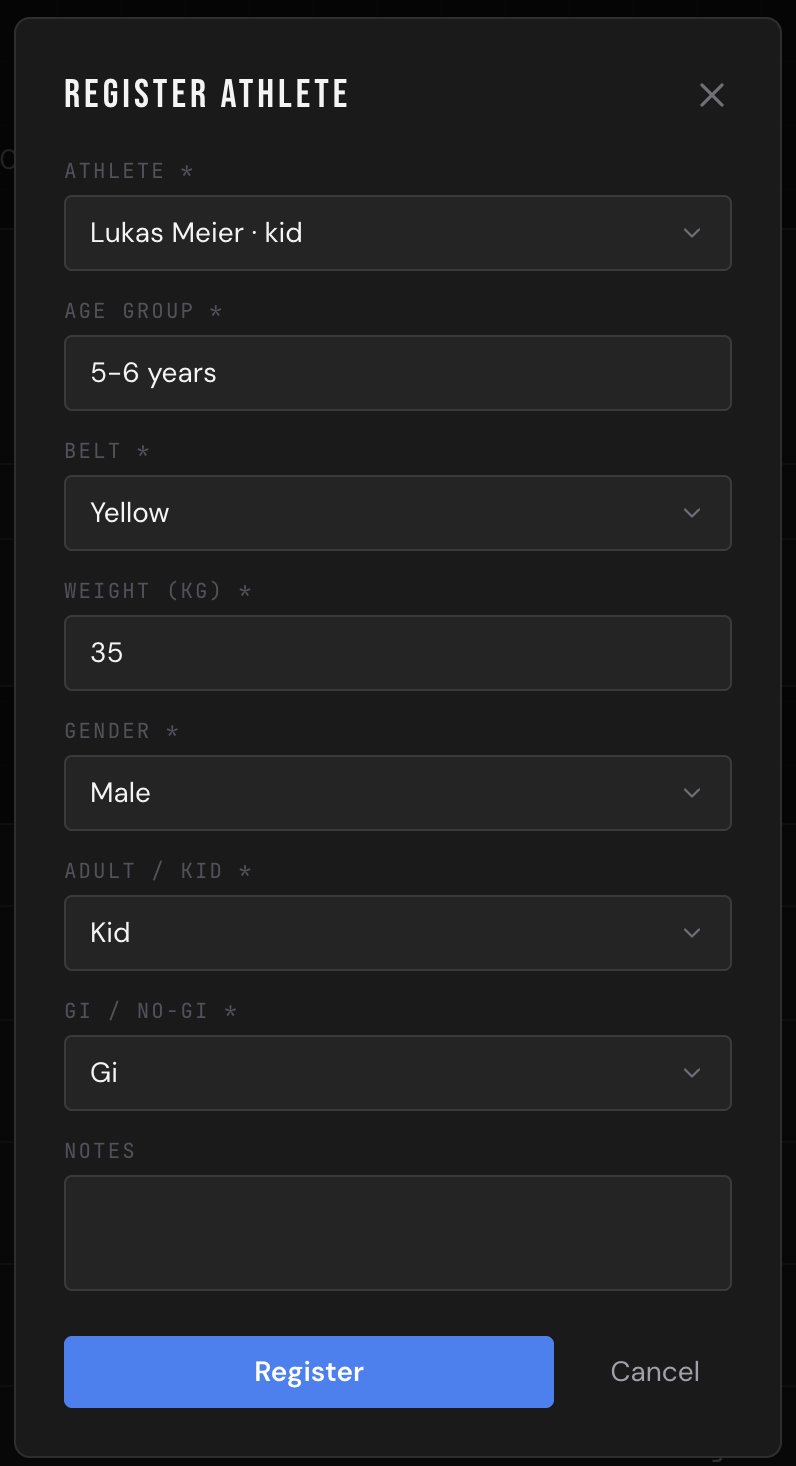
Register Athlete dialog — kid selected with age group, belt, weight and gi/no-gi fields 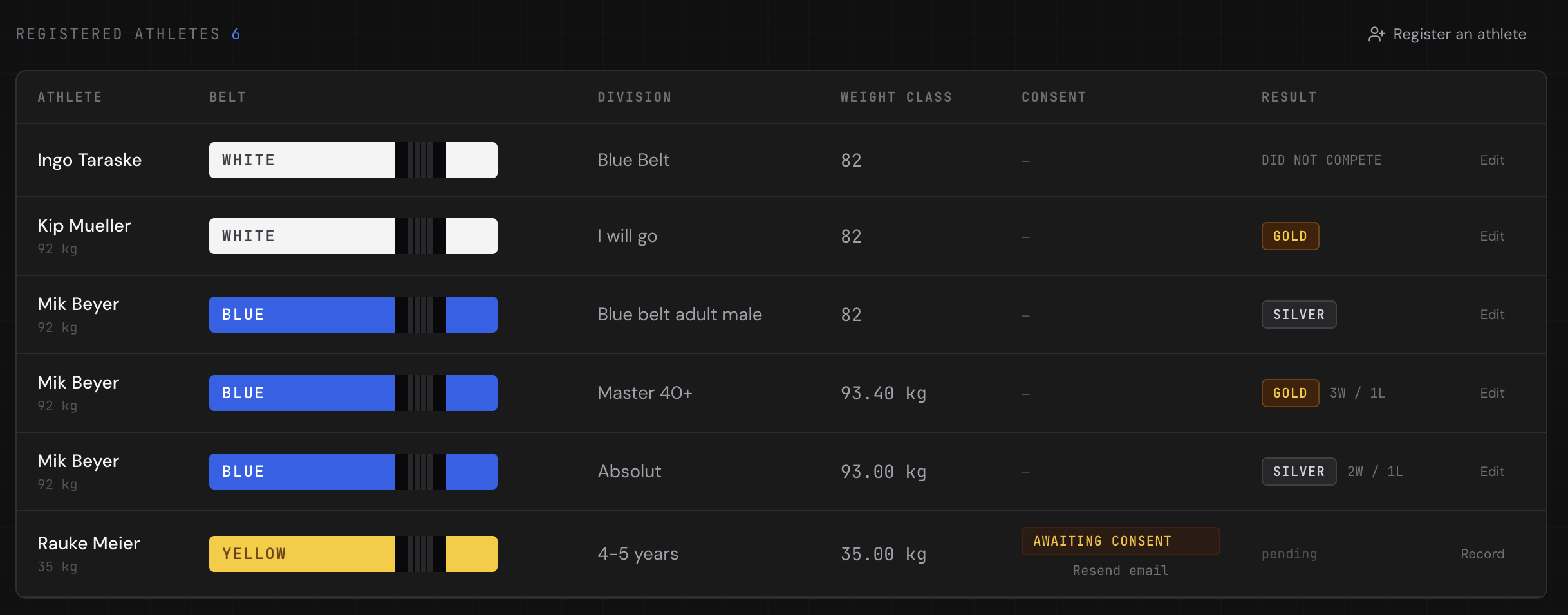
Registered athletes table — kid entry showing Awaiting Consent badge with Resend email link - 11
Converting a kid to a self-managed profile
When a kid turns 18 (or is ready to manage their own account), open their athlete profile.
Scroll to the Guardians section and click Convert to self-managed account.
Enter the athlete's real email address and optionally change their tier to Amateur. The athlete receives a Supabase invite email to set their password and log in independently.
The guardian link remains active until you remove it manually — they retain read access but the athlete can now manage everything themselves.