Getting support
How to find your support requests, start a new one, and attach files — directly from your dashboard.
- 1
Open the Support page
If something isn't working, or you're not sure how to do something, you don't need to email anyone — open Support from the left sidebar of your dashboard.
This takes you to your branch's support inbox, where you can see all your past requests and their status, and start a new one.
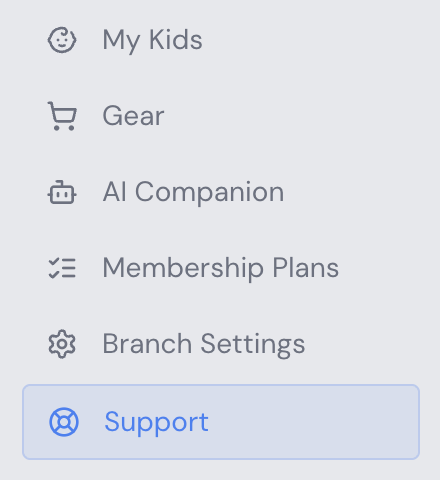
Sidebar navigation with the Support link highlighted - 2
Review your requests or start a new one
Every request you've sent is listed with its date and status — Open or Closed.
To create a new one, click New Request in the top right corner. A form will open where you can:
- Describe your issue or question (up to 500 characters)
- Attach up to 3 files — screenshots, CSVs, spreadsheets, or PDFs (max 1 MB each)
Click Submit Request when you're done. Our team will reply directly on the request, and you'll see new replies the next time you open it.
Tip: The more detail you include — what you were trying to do, what happened instead, and a screenshot if relevant — the faster we can help.
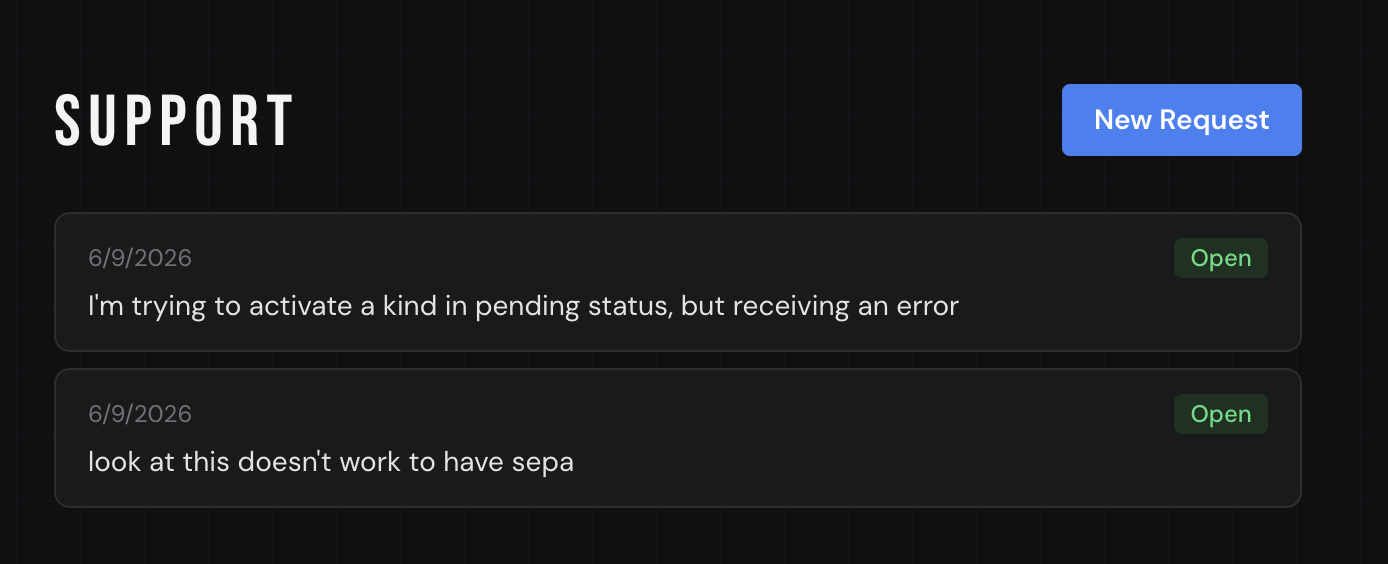
Support page showing a list of open requests and the New Request button - 3
Reply and follow up
Open any request from your list to see the full conversation. Replies from our team appear highlighted, with your own messages below.
You can reply at any time by typing in the box at the bottom and clicking Send — useful for adding more details or confirming that a fix worked.
Once your issue is resolved, the request is marked Closed. You can still view closed requests, but if a similar issue comes up again, it's best to open a new one.
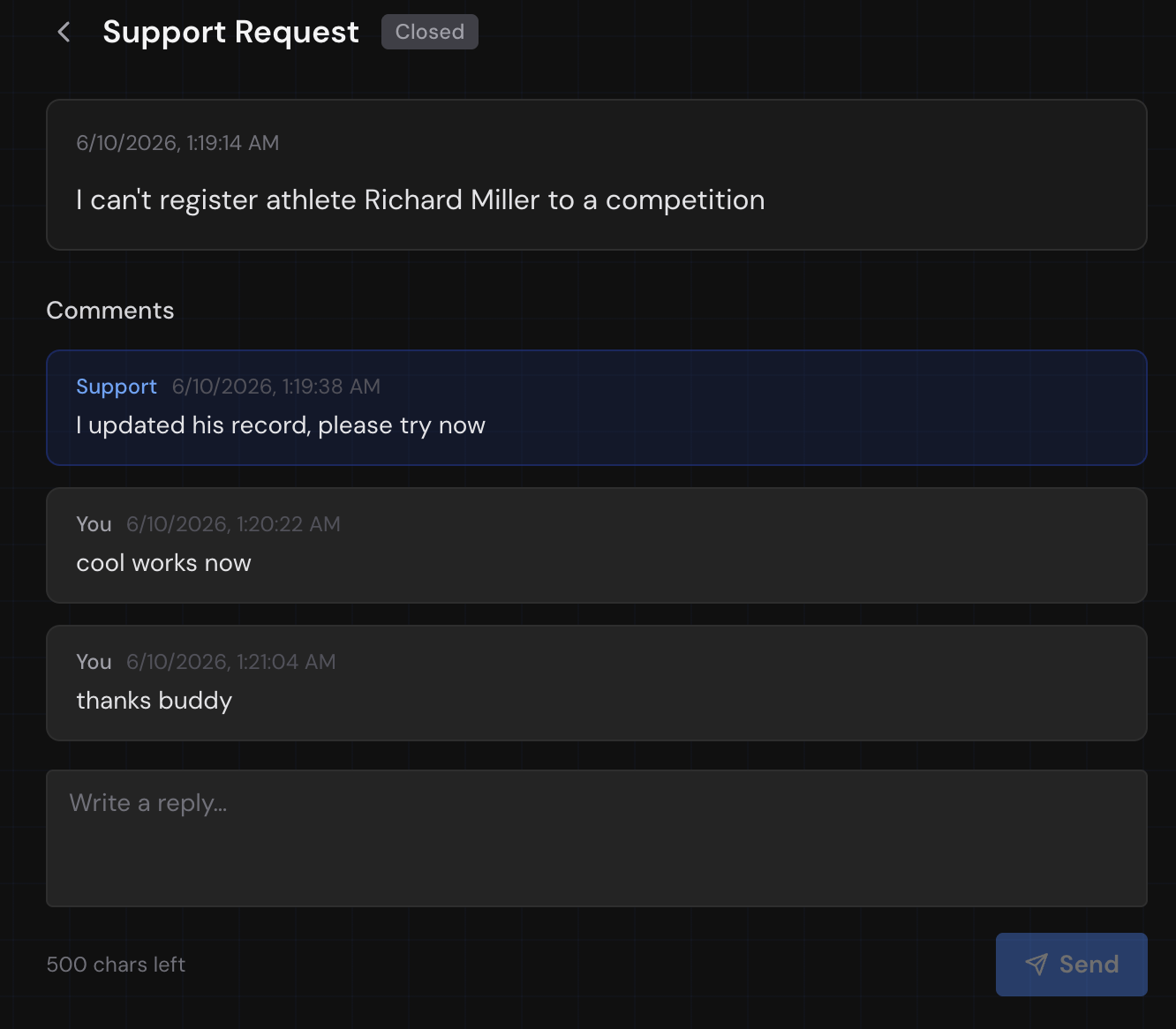
Support request conversation showing replies from the support team and the requester