HighLevel nach Purple-Belt-Anmeldung verbinden
Was Branch-Admins nach der Anmeldung tun: HighLevel-Passwort wiederherstellen, über Leads verbinden, Compteam installieren, Kontakte synchronisieren und Lead-Follow-ups senden.
HighLevel-Bundle- 1
Ihr HighLevel-Konto
HighLevel ist in Purple Belt enthalten, aber nicht immer sofort verfügbar. Nachdem Ihr Purple-Belt-Abonnement aktiv ist, erstellt Compteam ein verwaltetes HighLevel-Unterkonto für Ihren Branch und bereitet die Integration vor. Diese Einrichtung kann bis zu 1 Woche dauern.
Der HighLevel-Benutzer wird mit der E-Mail-Adresse des Branch-Admins erstellt. Verwenden Sie dieselbe E-Mail-Adresse, die Sie als Branch-Admin in Compteam nutzen.
Für Ihre erste HighLevel-Anmeldung:
- Öffnen Sie https://app.gohighlevel.com.
- Nutzen Sie Passwort vergessen oder die Passwort-Wiederherstellung für die E-Mail-Adresse des Branch-Admins.
- Legen Sie Ihr HighLevel-Passwort fest.
- Melden Sie sich bei HighLevel an.
Halten Sie Compteam- und HighLevel-Logins getrennt. Ihr Compteam-Branch-Admin-Login verwaltet den Club und die Integration; Ihr HighLevel-Login ist für Kontakte, Pipelines, Kampagnen und Follow-up.
- 2
Über die Leads-Seite verbinden
Nachdem Sie sich bei HighLevel anmelden können, öffnen Sie Compteam als Branch-Admin.
- Wechseln Sie in Compteam zu Leads.
- Klicken Sie auf Connect HighLevel.
- Melden Sie sich bei HighLevel an, falls der Browser danach fragt.
- Bestätigen Sie das von Compteam erstellte HighLevel-Unterkonto für Ihren Branch.
Wenn Sie die HighLevel-Integrationskarte noch nicht sehen, kontaktieren Sie den Compteam-Support oder antworten Sie auf Ihre Onboarding-E-Mail. Möglicherweise müssen wir das verwaltete Unterkonto für Ihren Branch noch fertig bereitstellen.

Compteam-Leads-Seite mit HighLevel-Verbindungsbanner und Backfill-Schaltflächen - 3
Compteam in HighLevel installieren
HighLevel öffnet die Installationsseite der Compteam-App. Sie ist mit Compteam beschriftet und zeigt eine Install-Schaltfläche.
Folgen Sie den HighLevel-Anweisungen auf dieser Seite:
- Wählen Sie das richtige Branch-Unterkonto aus, falls HighLevel danach fragt.
- Klicken Sie auf Install.
- Genehmigen Sie den angeforderten Zugriff.
- Warten Sie, bis HighLevel Sie zurück zu Compteam schickt.
Nach Abschluss der Installation kehren Sie zur Leads-Seite in Compteam zurück und das Verbindungsbanner sollte den Branch als verbunden anzeigen.
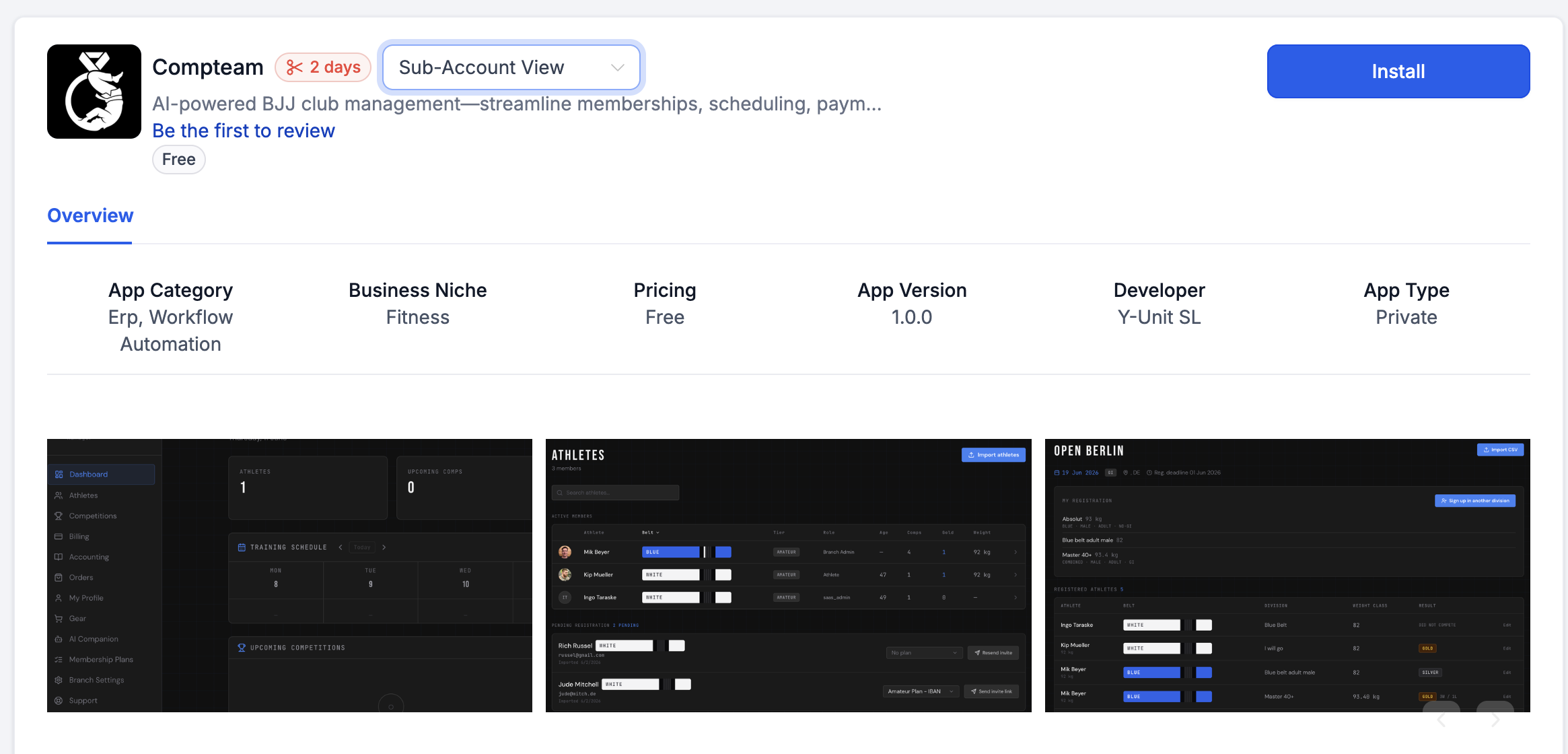
HighLevel-Marketplace-Seite für die Compteam-App mit Install-Schaltfläche - 4
So werden Kontakte synchronisiert
Kontakte werden alle 10 Minuten von HighLevel nach Compteam repliziert.
Um sofort zu synchronisieren, verwenden Sie die Schaltflächen im Compteam-Leads-Verbindungsbanner:
- Test sync prüft die Verbindung.
- Backfill 30 days importiert aktuelle Kontakte.
- Backfill 90 days importiert einen längeren aktuellen Zeitraum.
- Backfill all importiert alle verfügbaren HighLevel-Kontakte für das verbundene Konto.
Verwenden Sie nach der ersten Installation einen Backfill, wenn Sie bereits Kontakte in HighLevel haben und nicht auf das nächste 10-Minuten-Sync-Fenster warten möchten.
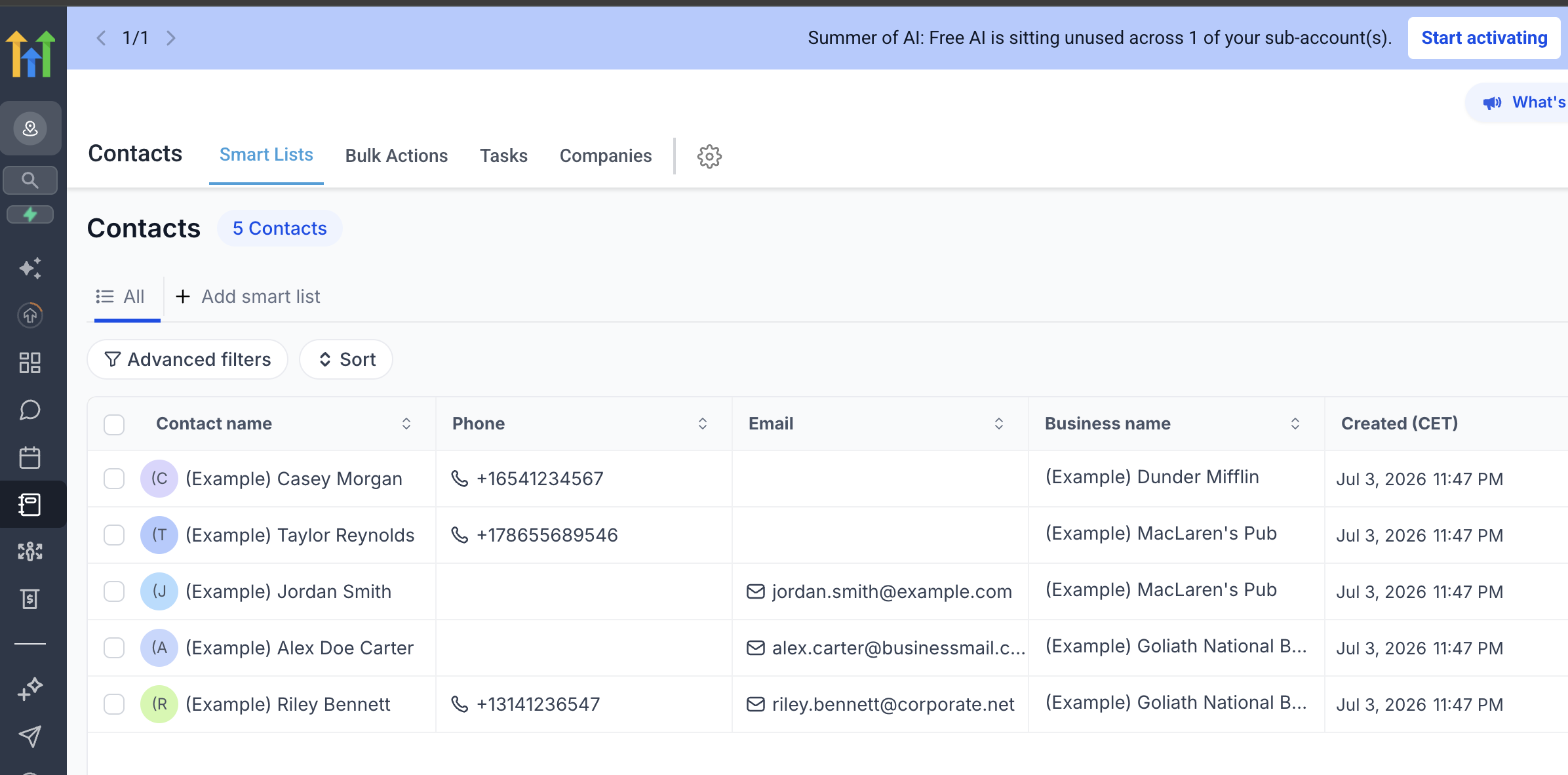
HighLevel-Kontakte-Seite mit Kontakten, die in Compteam Leads repliziert werden können - 5
Lead-Quellen und Aktionen nutzen
Jeder Lead in Compteam ist nach Quelle markiert:
- HighLevel - aus HighLevel-Kontakten repliziert.
- Instagram - aus Instagram-Unterhaltungen erstellt.
- Manual - direkt in Compteam erstellt.
Branch-Admins können eine oder mehrere Lead-Zeilen auswählen und senden:
- Class schedule
- Training location
- Registration link
Wenn die ausgewählten Leads einen HighLevel-Kontakt enthalten, sendet HighLevel die Nachricht. So bleiben HighLevel-Unterhaltungen und Zustellhistorie zusammen, während Compteam der Ort bleibt, an dem der Branch-Admin den operativen nächsten Schritt auswählt.
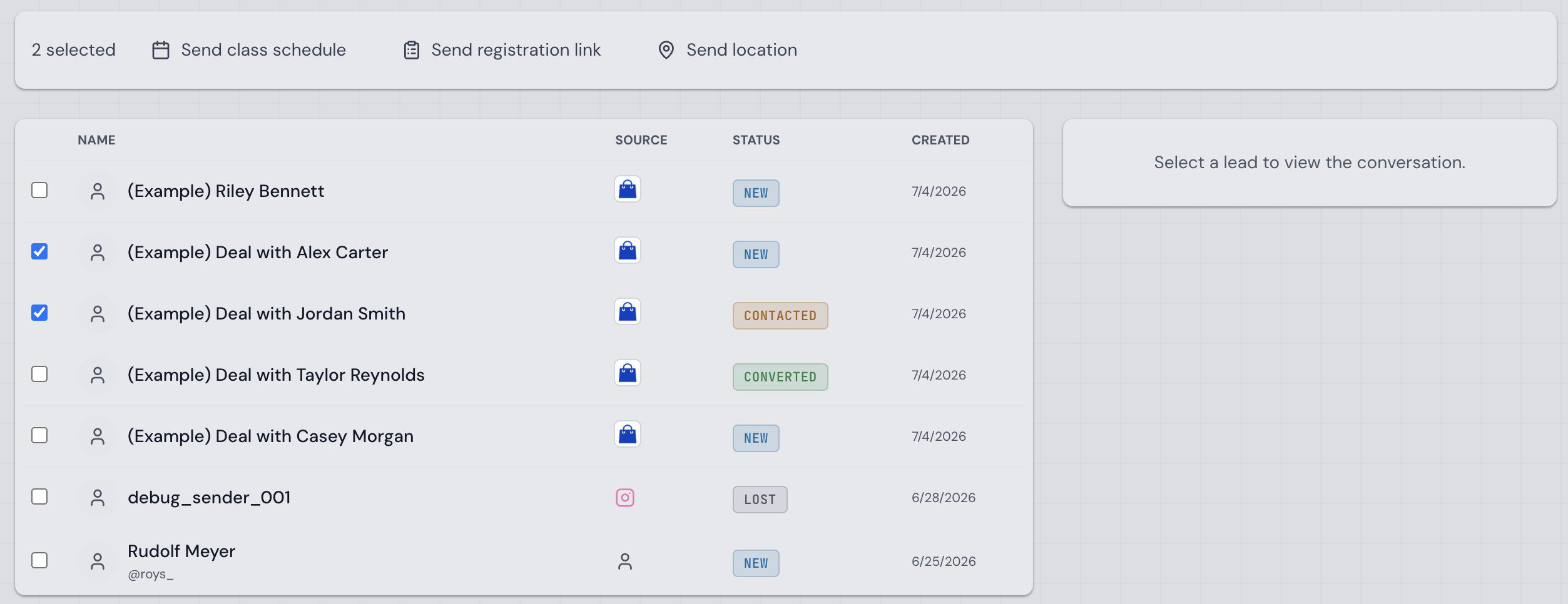
Compteam-Leads-Seite mit ausgewählten Leads und Aktionen für Kursplan, Registrierungslink und Standort - 6
Fehlerbehebung für Branch-Admins
Wenn Sie HighLevel nicht verbinden können:
- bestätigen Sie, dass Ihr Branch auf Purple Belt aktiv ist
- öffnen Sie Compteam als Branch-Admin für diesen Branch
- gehen Sie zu Leads
- bestätigen Sie, dass Sie sich im von Compteam erstellten HighLevel-Unterkonto anmelden
- verwenden Sie Connect HighLevel und schließen Sie die HighLevel-Installationsseite ab
- fragen Sie den Support, ob das verwaltete Unterkonto für Ihren Branch bereit ist
Wenn Leads nicht in Compteam erscheinen:
- bestätigen Sie, dass der Lead im von Compteam erstellten HighLevel-Unterkonto existiert
- warten Sie bis zu 10 Minuten auf die geplante Synchronisierung
- verwenden Sie Test sync oder eine der Backfill-Schaltflächen unter Compteam → Leads
- senden Sie dem Compteam-Support den Namen, die E-Mail-Adresse, die Telefonnummer und die HighLevel-Kontaktdaten des Leads
Wenn die direkte HighLevel-Anmeldung nicht funktioniert, öffnen Sie https://app.gohighlevel.com und stellen Sie das Passwort für die E-Mail-Adresse des Branch-Admins wieder her. Wenn das weiterhin fehlschlägt, bitten Sie den Support, die Branch-Admin-Liste zu prüfen und die HighLevel-Einladung für den Branch erneut zu senden.